An iPad makes a good teleprompter because the screen is big enough to read from a distance and light enough to mount almost anywhere. There are three ways to use one: read from it while it films you, use it as the prompter for a separate camera, or lay it under teleprompter glass so you read straight into a lens. Each needs a different setup, and the right one depends on what is doing the filming.
Setup 1: the iPad films you and shows the script
This is the simplest setup: no extra hardware, just the iPad on a stand at eye level.
- Find your front camera. Many recent iPads have it on the long edge, which is the top when the iPad is in landscape. Older models have it on the short edge, the top in portrait. Turn the iPad so the camera is at the top.
- Put the iPad at eye level, about an arm’s length away. Stack books under the stand if you need to.
- Open the script right under the camera. A teleprompter app built for this does it for you. In a browser, open the online teleprompter, paste your script and go full screen, then set a narrow width so the text sits in a column below the lens.
- Use large text and short lines. Five to eight words per line keeps your eyes still.
- Record with an app that records and prompts at the same time.
The catch with the browser version: the Camera app records full screen and does not show your script, so you either record in an app that prompts and films at once, or film with a second device. The next setup covers that.
Setup 2: the iPad is the prompter for another camera
Here a phone, webcam or camera films you, and the iPad only shows the text.
- Mount the camera first, at eye level.
- Place the iPad directly below the lens, as close as you can without it entering the shot. A tablet clamp on the same tripod, or the iPad on a stand right in front of the tripod, both work.
- Open the teleprompter, paste the script and go full screen. Use a narrow column centered under the lens.
- Raise the brightness so you can read without leaning in.
- Stand back and test. Record ten seconds and watch it. If your eyes look visibly down, move the iPad closer to the lens or narrow the text further.
The further you sit from the camera, the smaller the angle between the lens and the text, and the less anyone can tell you are reading. At around two metres it is hard to spot.
Setup 3: the iPad under teleprompter glass
For a true teleprompter, the iPad lies flat under a sheet of glass angled at 45 degrees in front of the camera. The glass reflects the text towards you while the camera films through it, so you read straight into the lens.
- Use a rig made for tablets, or build one; the DIY teleprompter guide has the steps.
- Lay the iPad flat, screen up, under the glass, with the top of the text towards you.
- Turn on Mirror in the teleprompter. The reflection flips the text left to right; mirroring it on the screen flips it back.
- Set brightness to maximum and darken the space around the lens so the reflection stays clear.
- Use a remote, since you cannot reach the screen under the glass. A Bluetooth keyboard, clicker or foot pedal paired to the iPad will do; see teleprompter remote for which keys they send.
Settings that matter on any setup
- Turn off Auto-Lock (Settings, Display and Brightness) or set it long, so the screen does not dim mid-take.
- Turn on Do Not Disturb or a Focus so notifications do not cover the text.
- Close other apps that might use the microphone if you use voice scrolling.
- Plug in for long sessions. Full brightness drains the battery fast.
- Set the speed by reading aloud. Read a paragraph aloud and adjust until you never wait and never chase. Teleprompter reading speed explains how.
Steady speed or voice scrolling
A steady scroll suits a rehearsed script read at an even pace. If you pause, add an aside or slow down for emphasis, voice scrolling is easier: the text moves only while you speak. The online teleprompter on this site offers both; choose Voice to follow your speech in Safari, Chrome or Edge.
An app that records and prompts at once
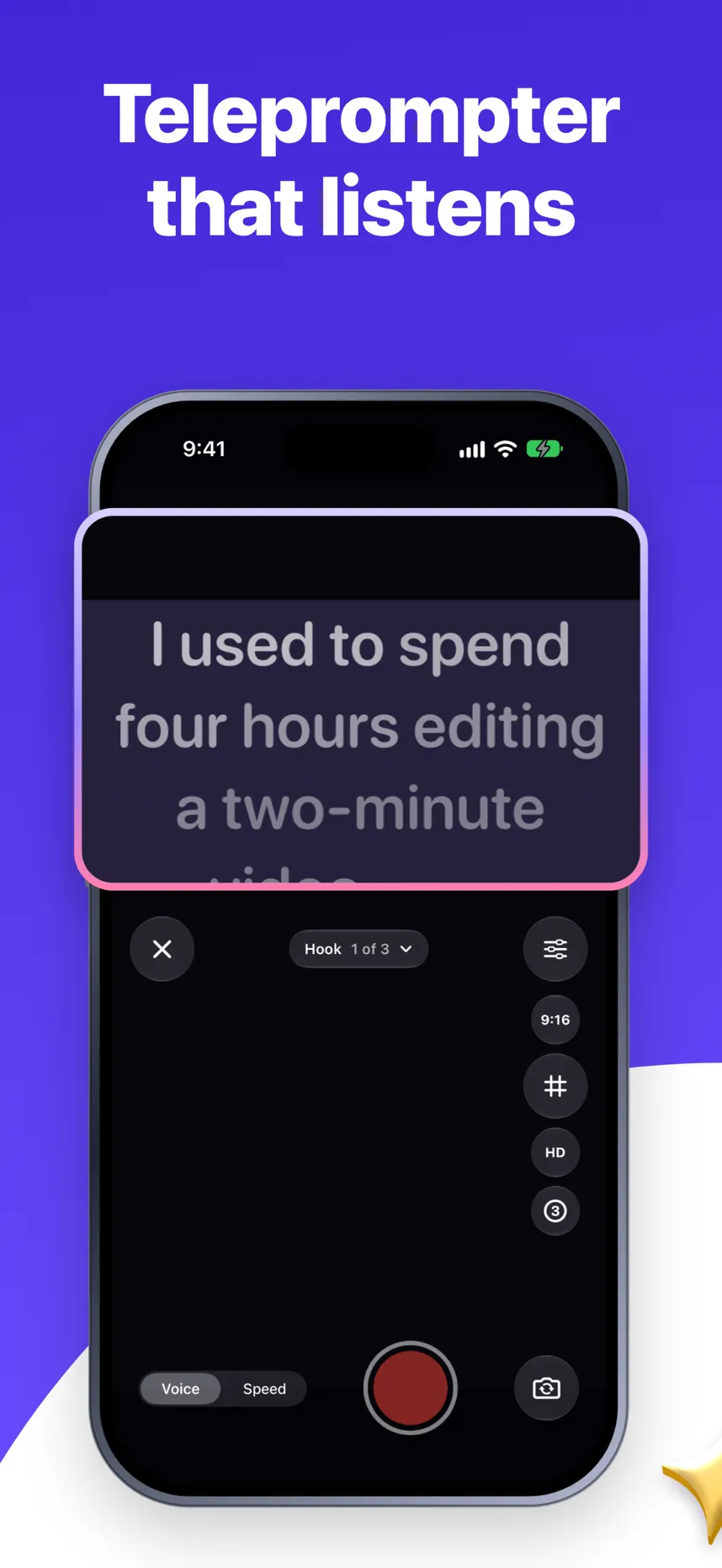
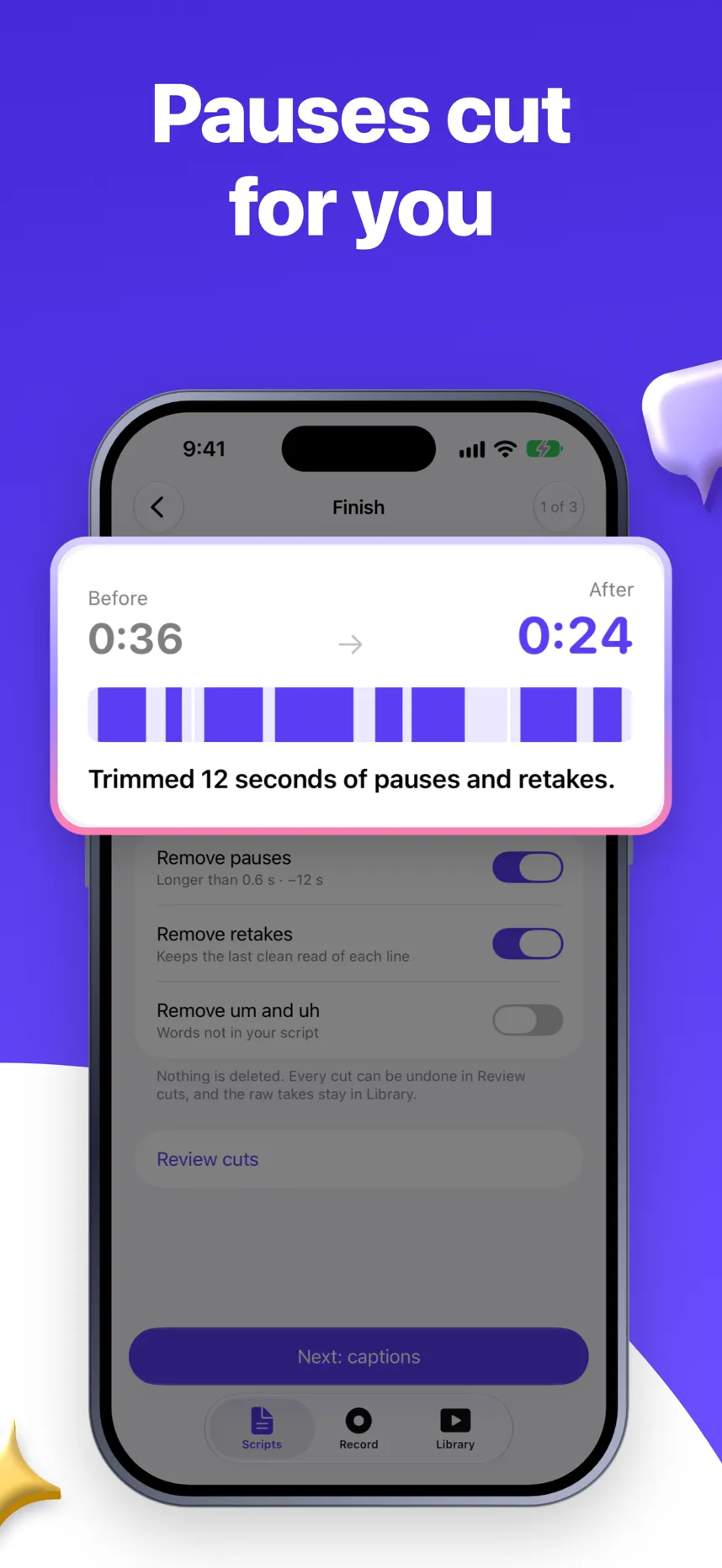
Cue for iPhone and iPad covers the first setup in one app: the script sits right under the front camera while Cue records you, follows your voice with speech recognized on the device, and has a mirror mode for beam-splitter rigs. It also works with Bluetooth keyboards and foot pedals. After the take, Cue Studio cuts pauses and retakes and adds captions spelled from your script. Cue is a free download; your first three takes follow your voice without Cue Studio.