A teleprompter remote is almost always a Bluetooth keyboard in disguise. Presentation clickers, foot pedals and most “teleprompter remotes” pair with your computer, phone or tablet as a keyboard and send a handful of keys, usually Page Up and Page Down, the arrow keys or Space. So the real question is which keys your remote sends and which keys your teleprompter listens to. Match the two and almost any cheap clicker will do the job.
Why use a remote at all
When the screen is under glass, across the room or on the phone that is filming you, reaching for it ruins the take. A remote lets you:
- start and pause the script without leaving your position
- step back a line after a stumble
- nudge the text forward when you have moved ahead of it
- change speed between takes without walking to the screen
If you read in one sitting at a desk, you may not need one. For anything filmed at a distance or through a DIY teleprompter rig, it saves a lot of walking.
The types of remote
Presentation clickers. Small, cheap and made to be held out of sight. Most send Page Up and Page Down for back and forward. Some also send B (blank screen), F5 or Escape. They are the easiest choice when you talk to the camera with one hand free.
Bluetooth foot pedals. Sold for musicians reading sheet music and for transcription. Most can be set to send Page Up and Page Down or the arrow keys. A pedal is the right tool when your hands are busy, for example in a cooking or product demo video.
Keyboards. A small Bluetooth keyboard on your lap gives you every key. Less discreet, but useful for rehearsing and for desk setups.
Game controllers. Some teleprompter apps accept a paired controller. The large buttons are easy to find without looking.
The phone itself. On iPhone, some camera apps let the volume buttons or AirPods start and stop recording. That is handy when the phone is both the prompter and the camera.
Check which keys your remote sends
Before buying anything, or before a shoot with a remote you have not used:
- Pair the remote with the device that will show the script.
- Open any text editor and press each button. Arrow keys move the cursor, Page Down jumps a screen, Space types a space. If nothing happens, the remote may need a mode switch; many pedals and clickers have a small toggle or a key combination in their manual.
- Write down what each button does. You now know whether it will work with your teleprompter.
Using a remote with the free online teleprompter
The online teleprompter on this site listens to the keys that clickers and pedals send. Once you click inside the page so it has focus:
| Key | What it does |
|---|---|
| Space | Start or pause |
| Page Down or Down arrow | Move one line forward |
| Page Up or Up arrow | Move one line back |
| Right and Left arrows | Faster and slower, in speed mode |
| F | Full screen |
| M | Mirror the text for teleprompter glass |
| Escape | Leave full screen |
A clicker that sends Page Up and Page Down will move your script a line at a time. If it sends the Left and Right arrows instead, those buttons change the speed while scrolling at a steady pace. None of these keys does anything while you type in the script box, so the remote cannot change your text by accident.
There is one catch with browsers: keys go only to the window that has focus. If you share your screen in a call or have slides open, click once inside the teleprompter page before you start.
Setting it up on the day
- Charge or replace the battery. Clickers and pedals often die mid-shoot.
- Pair it again if the device was restarted or the remote was used elsewhere.
- Do a short dry run. Start, pause, step back and step forward once each with the remote, without touching the screen.
- Keep the remote out of shot, or hold it low and still. A clicker in a closed hand reads as a natural gesture.
- Decide on one key for “go back” and practise it. Stumbles happen; reaching for the right button without looking keeps the take alive.
Common problems
- The remote moves slides instead of the text. The slide app has focus. Click inside the teleprompter first.
- It works in one app but not another. The remote sends keys the second app ignores. Change the remote’s mode, or use an app that listens to those keys.
- Double steps. Some pedals send a key on press and again on release. Check the pedal’s settings or use its other mode.
- Lag. Bluetooth is usually fast enough. If not, move the receiver or device closer and away from Wi-Fi routers and USB 3 hubs.
When you do not need a remote at all
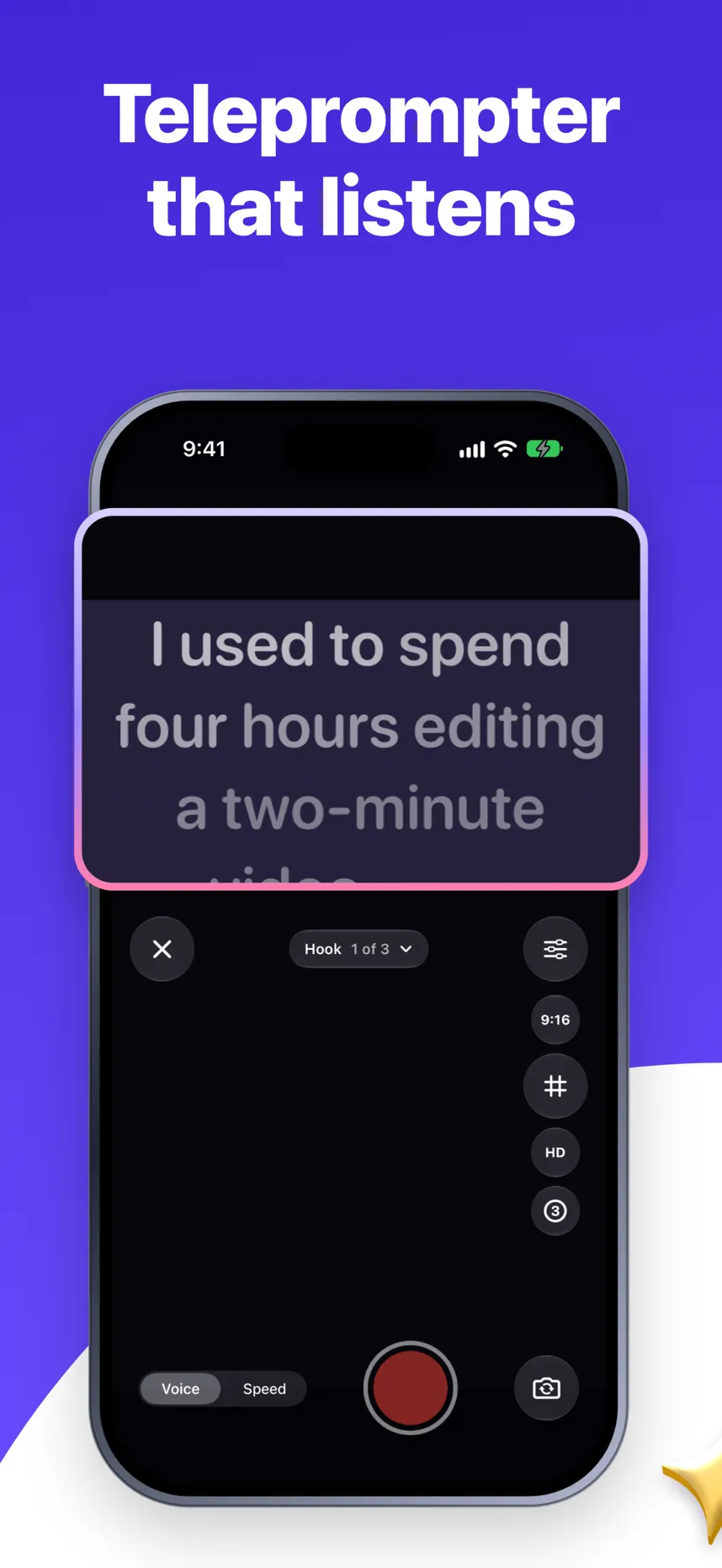
A remote solves the start and stop problem, but it still asks you to think about the text while you speak. Voice scrolling removes most of that. With Voice selected, the online teleprompter moves only while you talk and holds still when you stop, in Chrome, Edge and Safari. Reading pace is covered in teleprompter reading speed.
Cue for iPhone and iPad does the same on the device and also accepts the remotes above: Bluetooth keyboards and foot pedals (Space, Return, arrows and page keys), game controllers, and the volume buttons and AirPods camera remote to start and stop recording. Your first three takes follow your voice for free; after that, voice scrolling is part of Cue Studio.